

Enable or disable the assistant
Toggle the assistant status to enable or disable the assistant for your documentation site.

Set deflection email
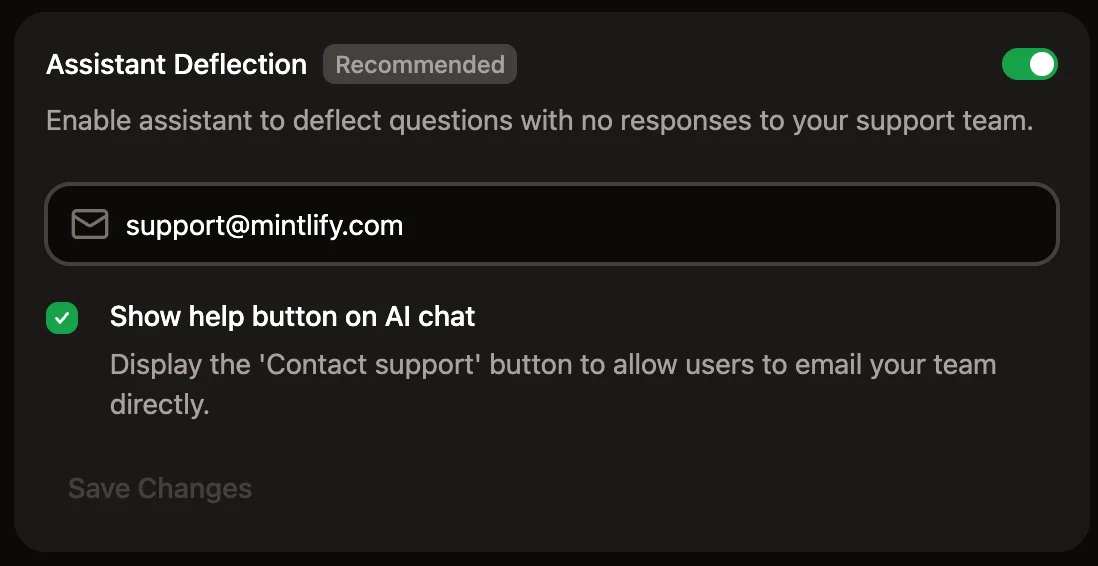
In the Response Handling section, enable the assistant to redirect unanswered questions to your support team. Specify an email address for the assistant to give to users if it cannot answer their question. You can also enable a “Contact support” button to appear in the assistant chat panel.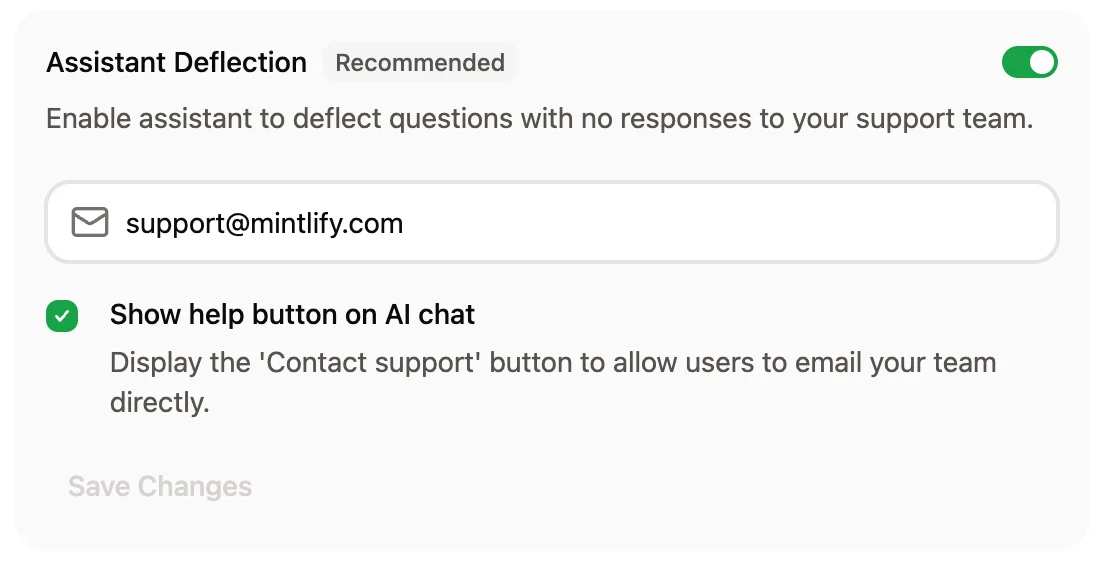
Search domains
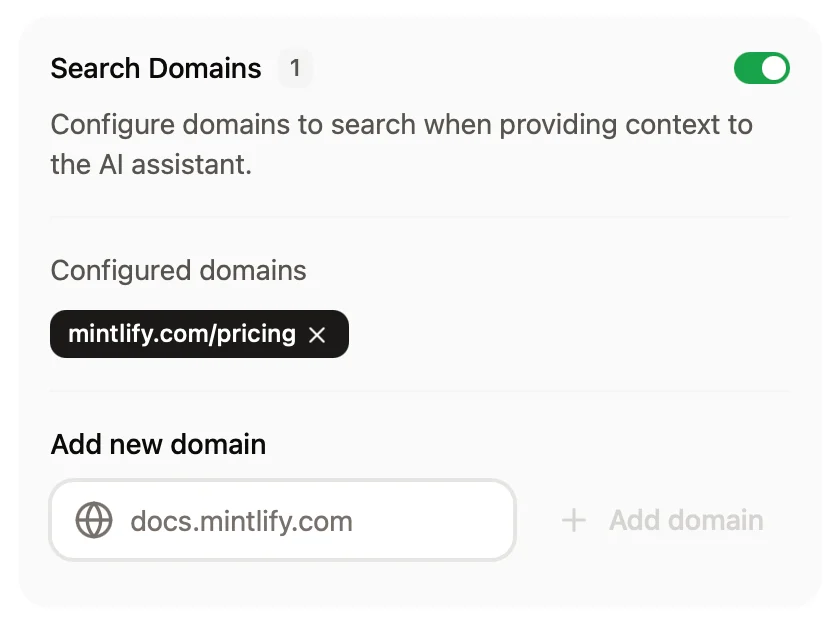
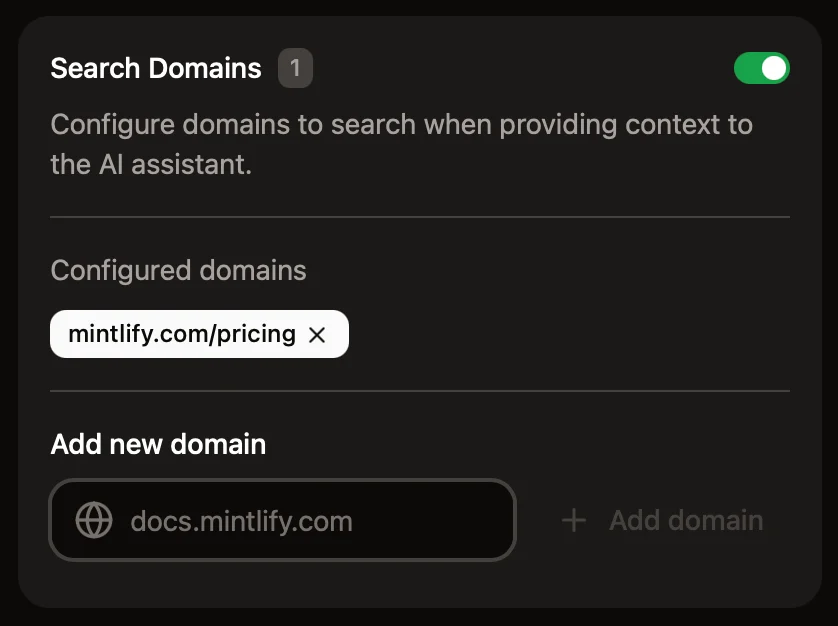
In the Response Handling section, configure domains that the assistant can use for web search to find additional context when answering questions.- Domains must be publicly available.
- Domains that require JavaScript to load are not supported.
- Domain-level filtering
example.com: Search only theexample.comdomaindocs.example.com: Search only thedocs.example.comsubdomain*.example.com: Search all subdomains ofexample.com
- Path-level filtering
docs.example.com/api: Search all pages under the/apisubpath
- Multiple patterns
- Add multiple entries to target different sections of sites
Add sample questions
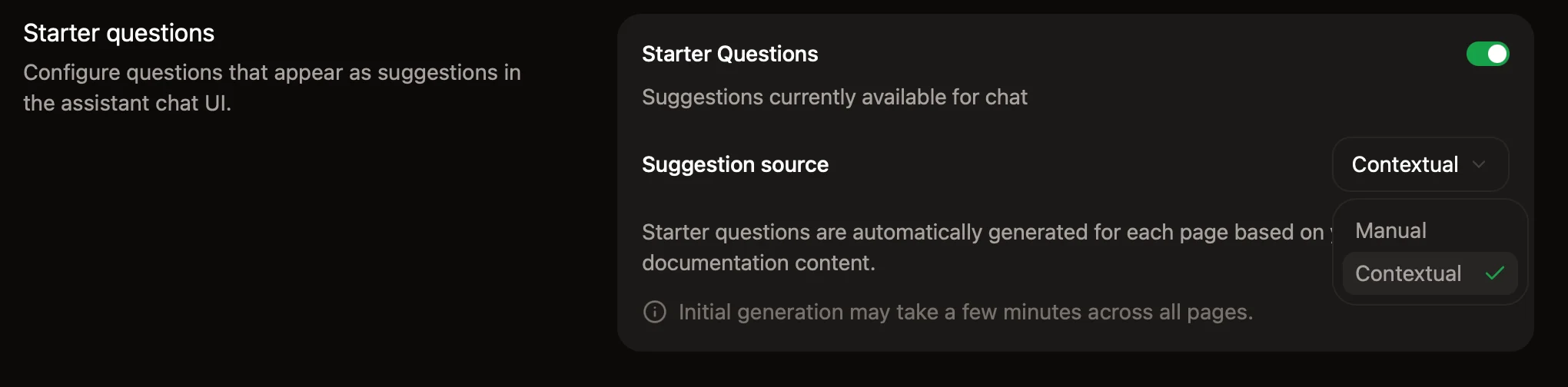
Help your users begin conversations with the assistant by adding starter questions. The assistant can generate page-specific questions based on the page a user is viewing or you can add persistent questions that are available across pages. You can add up to three starter questions. Click Ask Assistant for recommended questions based on your documentation.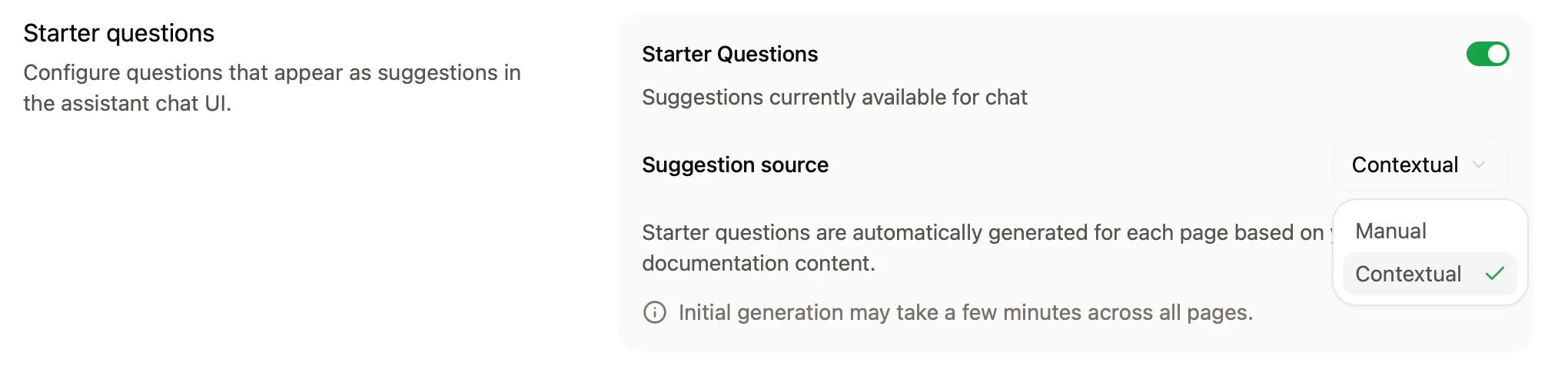
Bot protection
In the Bot Protection section, enable invisible captcha to protect your assistant from automated abuse. The bot protection is privacy-friendly and invisible to nearly all visitors. To enable bot protection:- Go to the Assistant settings page in your dashboard.
- In the Bot Protection section, toggle Invisible Captcha on.
If you use custom Content Security Policy headers, you must include
hcaptcha.com and *.hcaptcha.com in your allowlist.Manage billing
The assistant runs on credits. Each assistant message consumes credits, where a message is any user interaction with the assistant that receives a response. See Credit pricing for more information.Change your credit tier
- Go to the Usage page of your dashboard.
- In the Credit packages section, select a tier from the dropdown menu.
- Confirm the change to proceed to checkout.